 CourseGlade
 Assignments addon
Collect student submissions with text/file types, points, deadlines, and grading.
The Assignments addon (Pro) adds an assignment content type to your curriculum, so a course can ask for submitted work, not just quizzes.
Add an assignment
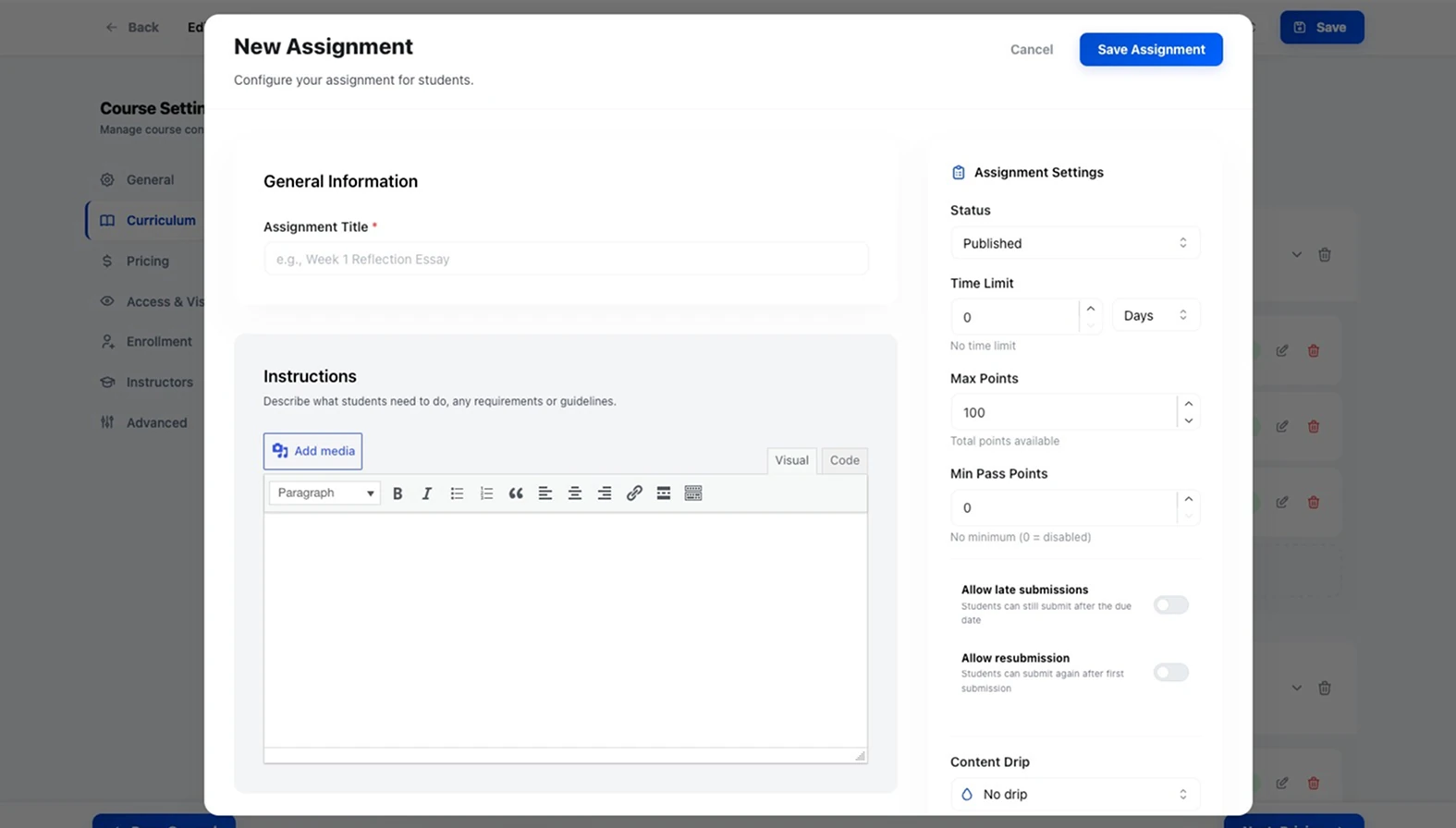
With the addon active, Assignment appears in the curriculum builder’s Add Content picker (the option is visible but disabled otherwise). Selecting it opens the Assignment Editor:
- Assignment Title (required)
- Instructions — rich text describing the task
- Submission Type — Text, File Upload, or Text + File
- Assignment Settings — Status, Time Limit (with Hours/Days/Weeks), Max Points (100 by default), Min Pass Points, and toggles for Allow late submissions and Allow resubmission
- For file types — File upload limit and Max file size (MB) (0 = unlimited)
- Attachments — rubric or starter files for students
If a time limit is set, you can start the countdown from enrollment or from when the student clicks Start Assignment.
Student submissions
Students submit text, files, or both (uploads are restricted to a safe file-type allowlist). If resubmission is allowed, they can submit again — but only after the previous attempt is graded, up to any resubmission cap.
Grading
Submissions go to CourseGlade → Assignments, listed with Student, Assignment, Course, Submitted, Status (Pending Review / Graded / Returned / Late), and Grade. Open one to see the attempt history and, in the Grading panel, enter a Grade (up to max points) and Feedback, then Save Grade. You can also grant a one-off Allow Resubmission.
A grade must meet the Min Pass Points to mark the assignment complete, and grades flow into the Pro Gradebook addon.