 CourseGlade
 Quizzes & grading
Build a quiz, set quiz rules, and grade essay and short-answer questions.
A quiz is a curriculum item made of questions. Build one from the course curriculum or as a standalone quiz with the [courseglade_quiz] shortcode.
Build a quiz
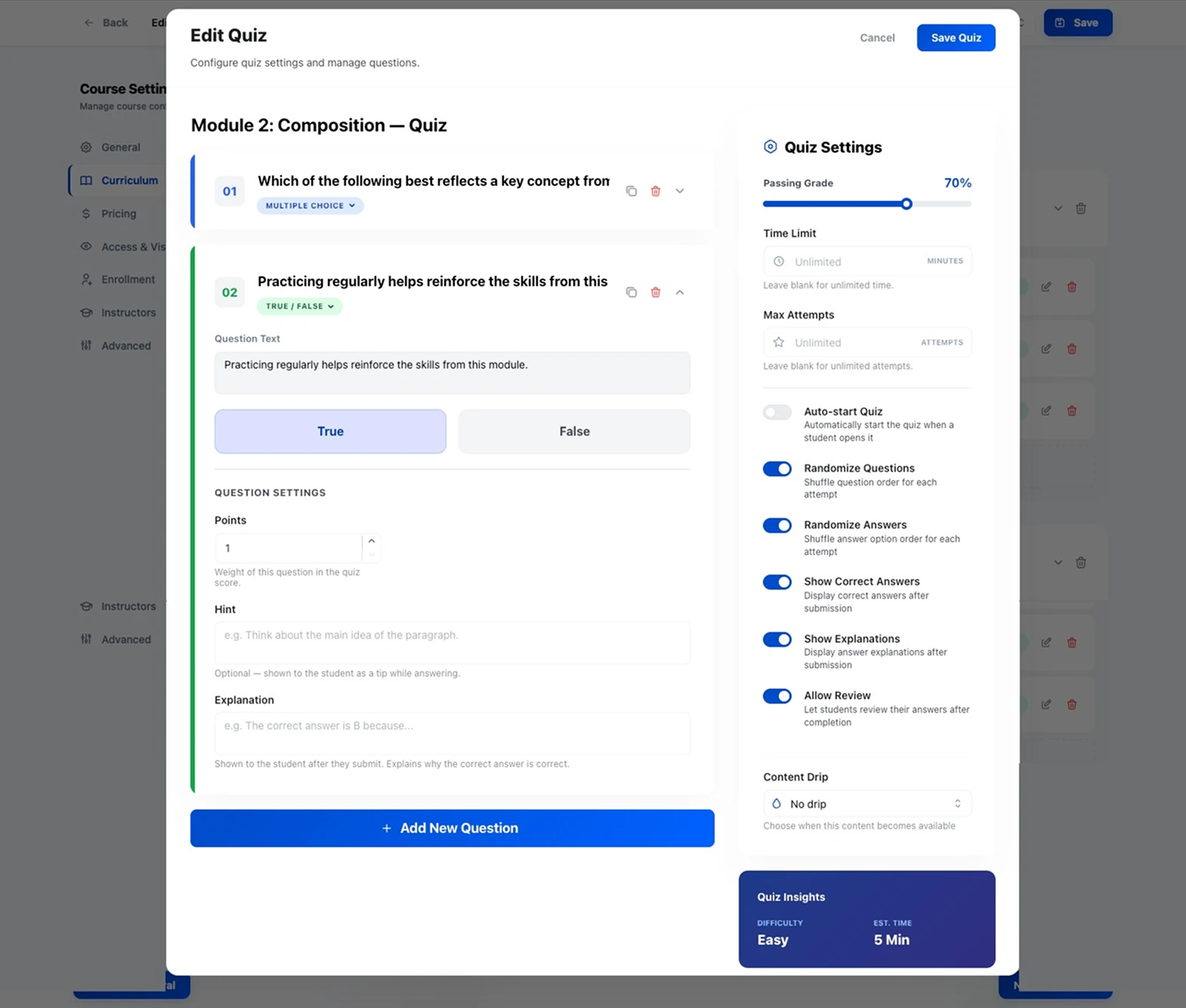
In the Quiz Builder, add a title, click Add Question to Quiz, and pick a type from the question-type menu. Set each question’s text, answers, and per-question Points, Hint, and Explanation.
Quiz settings
In the right-hand Quiz Settings panel:
- Passing Grade — the pass threshold (50% by default)
- Time Limit — minutes; blank means unlimited
- Max Attempts — blank means unlimited
- Toggles — Randomize Questions, Randomize Answers, Show Correct Answers, Show Explanations, Allow Review, and Auto-start Quiz
Click Publish Quiz when you’re done.
Attempts
Every attempt is recorded with the student’s answers, score, and status. Students see their attempts in the dashboard’s Quiz Attempts tab.
Grading essays and short answers
Auto-graded questions score instantly; Short Answer and Essay land in CourseGlade → Quiz Attempts (marked Needs Grading):
- Open the attempt.
- For each open question, enter Points Earned (up to the question’s max) and optional Feedback.
- Click Submit Grades — the counter shows your progress (e.g. “Submit Grades (0/2)”). Submit All Grades at the foot of the page does the same for every open question at once.
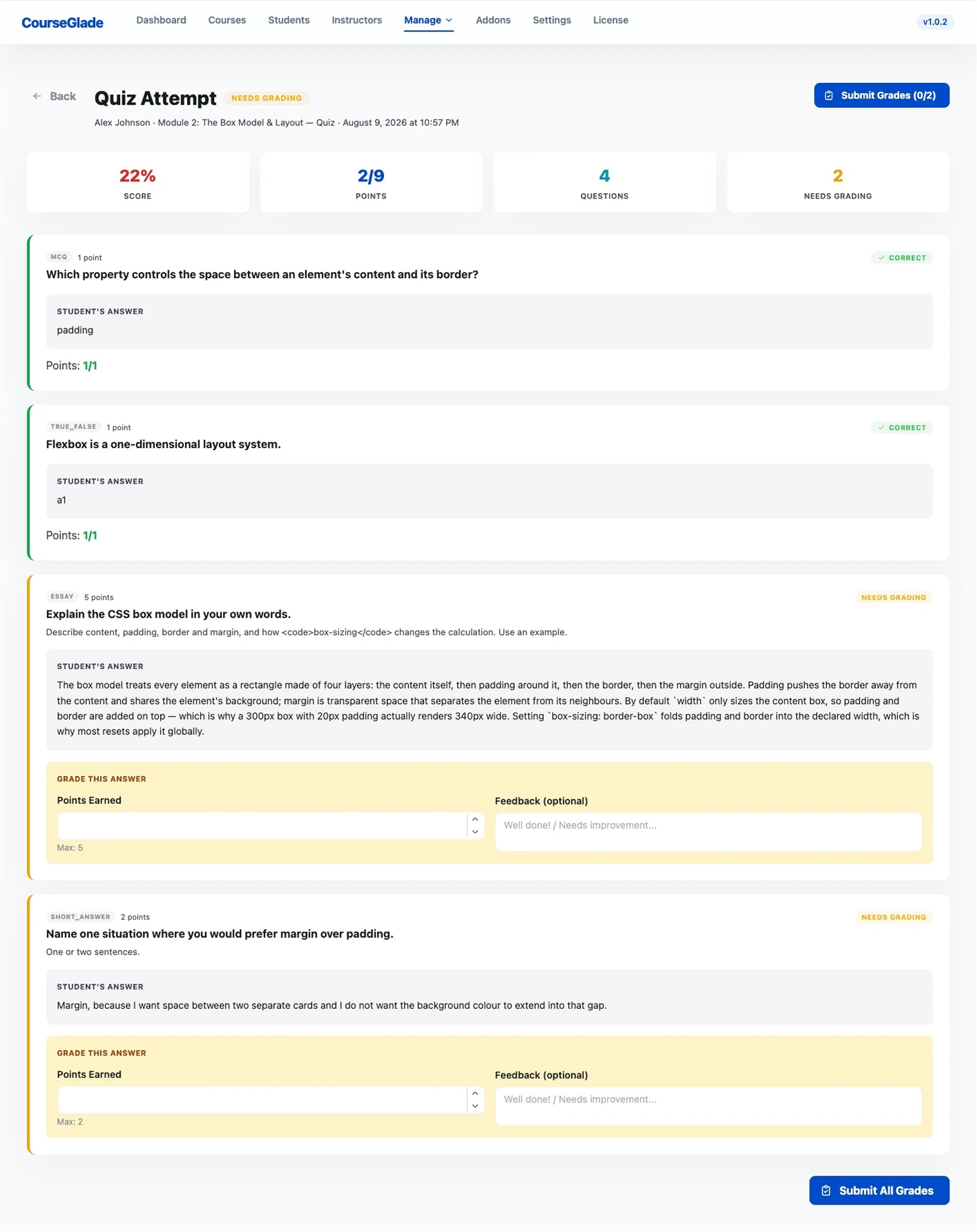
Grading needs the instructor grading capability, so instructors grade their own courses and admins grade any.
Pro: gradebook
With the Pro Gradebook addon, quiz scores combine with assignment grades into letter grades and GPA.