 CourseGlade
 Set up Stripe payments
Connect Stripe Checkout step by step — keys, mode, and the webhook that confirms payments.
CourseGlade’s Stripe gateway uses Stripe Checkout — Stripe hosts the payment page, so cards, wallets, and PCI compliance are handled for you. This guide walks the exact screens.
Before you start
- A Stripe account (test mode is fine to begin)
- Your Stripe API keys and a webhook signing secret (created below)
1. Open the payments settings
In wp-admin, go to CourseGlade → Settings → Payments. The tab shows cards in this order: Currency, Stripe, WooCommerce, Manual/Offline Payment, Order Management.
Set the Currency card first if you haven’t:
- Default Currency — pick your currency (USD by default)
- Symbol Position — “Before amount ($99)” or “After amount (99$)”
- Decimals — 0–4 (2 by default)
2. Enable Stripe and pick a mode
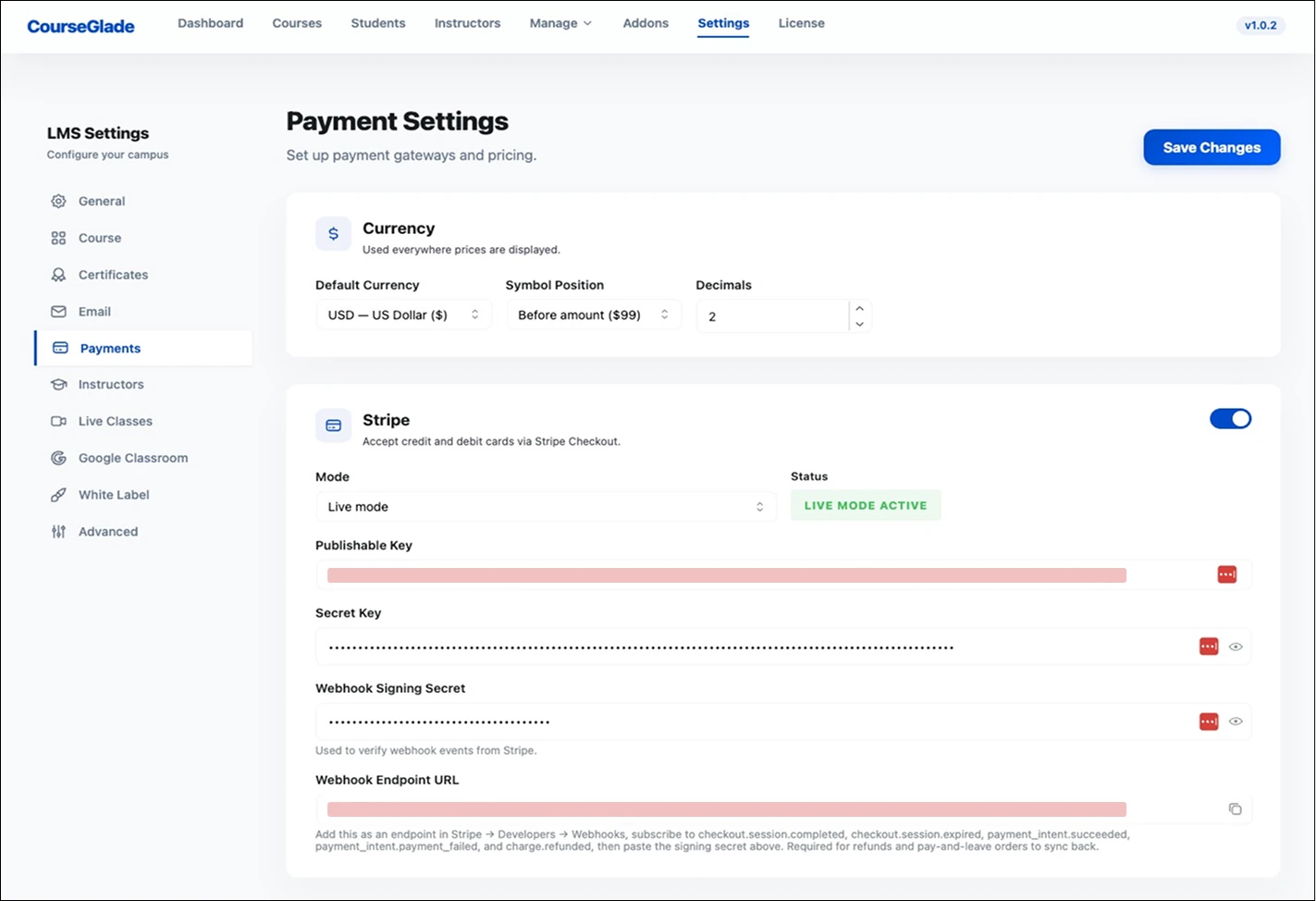
In the Stripe card (“Accept credit and debit cards via Stripe Checkout”):
- Flip the switch in the card’s top-right corner to on. (While off, it reads “Stripe is currently disabled. Toggle it on to configure your API keys.”)
- Set Mode to Test mode or Live mode. The Status badge confirms your choice — yellow “Test mode” or green “Live mode active”.
3. Enter your API keys
From your Stripe dashboard (Developers → API keys), copy the keys that match your selected mode:
- Publishable Key —
pk_test_…in test mode,pk_live_…in live mode - Secret Key —
sk_test_…orsk_live_…
CourseGlade validates that keys match the mode. Mismatches are rejected on save with a message like “Test mode is enabled but you provided live API keys.” — so keep keys and mode aligned.
4. Create the webhook
Stripe confirms payments by webhook, so orders complete even if the buyer closes the tab.
-
In the Stripe card, copy the Webhook Endpoint URL — CourseGlade builds it for your domain and gives it a copy button, so you don’t have to construct it. It takes the form:
https://YOUR-SITE.com/?courseglade_webhook=stripe -
In Stripe, go to Developers → Webhooks → Add endpoint and paste it as the endpoint URL.
-
Subscribe to these five events:
checkout.session.completedcheckout.session.expiredpayment_intent.succeededpayment_intent.payment_failedcharge.refunded
-
Copy the endpoint’s Signing secret (
whsec_…) and paste it into Webhook Signing Secret in the Stripe card (“Used to verify webhook events from Stripe”).
Don’t skip the signing secret. The field isn’t marked required, but if it’s empty CourseGlade rejects every webhook to prevent forgery — payments made via the async webhook path will silently fail to complete. Always paste the
whsec_…value.
5. Save and test
Click Save. With test keys active, enroll in a paid course and pay with card 4242 4242 4242 4242:
- The order moves to Completed
- The student gets the enrollment email
- The course unlocks immediately
CourseGlade also verifies the session on the return redirect, so a course can unlock even before the webhook arrives — the webhook is the reliable backup path.
Gotchas
- Keys must match the mode — test keys with Test mode, live keys with Live mode.
- Empty webhook secret = rejected webhooks. Always set it.
- Stripe only appears at checkout when it’s enabled and both keys are filled in.
Other gateways
- WooCommerce — link courses to products
- Manual / offline and free enrollment — see Payment gateways