 CourseGlade
 Settings overview
Every settings tab in sidebar order — general, course, email, payments, instructors, advanced, and the Pro tabs.
Settings live under CourseGlade → Settings as a sidebar of tabs. Save with Save Changes. Tabs are listed below in sidebar order; those that appear only when a Pro addon is active are marked as such.
License is not one of them — it’s a separate top-nav item that appears next to Settings once Pro is active. See Activate your license.
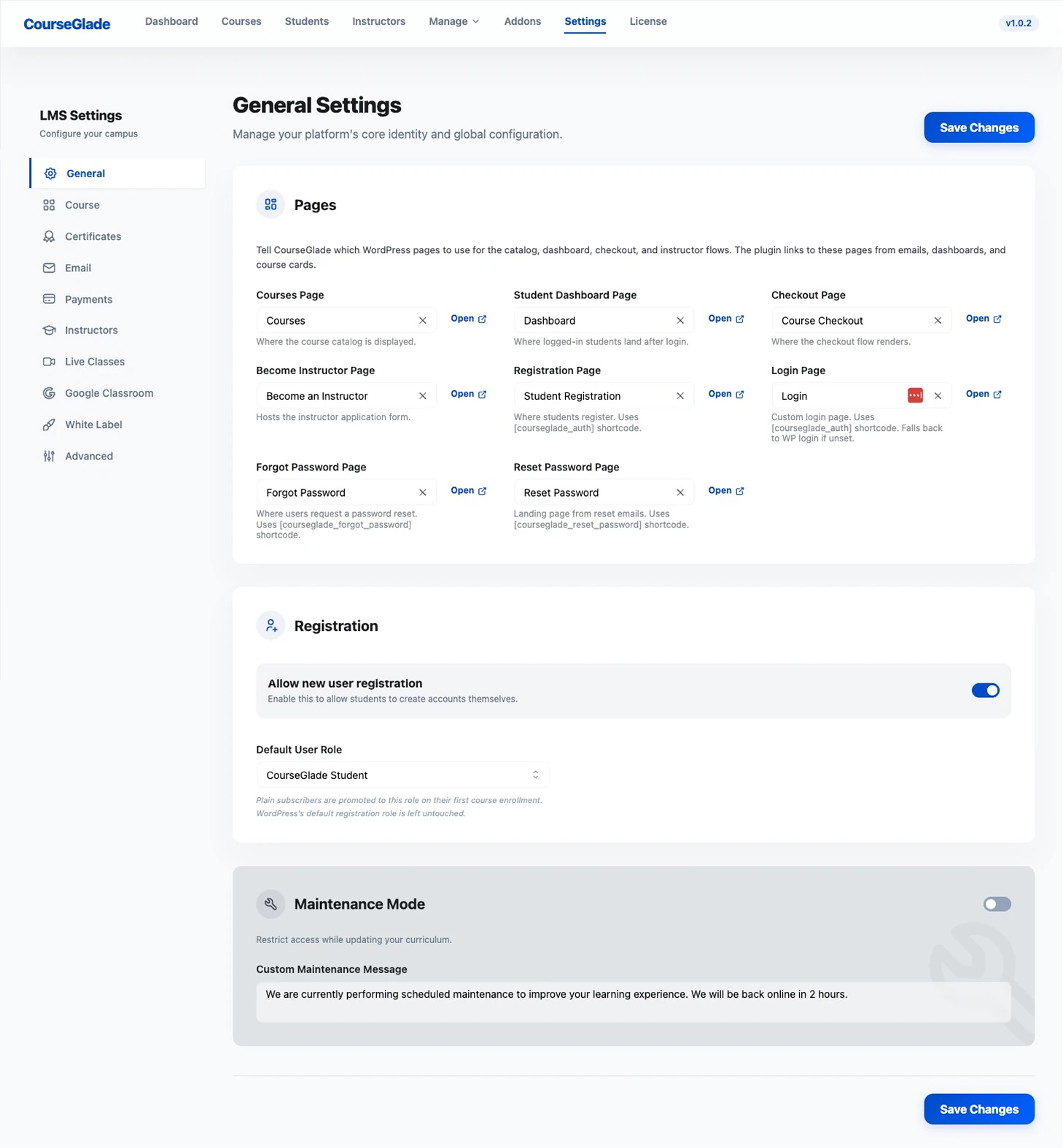
General
- Pages — assign the WordPress pages CourseGlade uses (Courses, Student Dashboard, Checkout, Become Instructor, Registration, Login, Forgot/Reset Password). CourseGlade builds links to these into emails, dashboards, and course cards.
- Registration — Allow new user registration and the Default User Role (subscribers are promoted to this role on first enrollment; WordPress’s own default role is untouched).
- Maintenance Mode — a toggle and a Custom Maintenance Message. See Maintenance & email verification.
Course
- Course Features — global toggles for Q&A / Discussions, Course Reviews, Review Moderation, and Progress Tracking (each overridable per course).
- Catalog Layout — Courses Per Page (12), Grid Columns (2/3/4, default 3), and the Previous/Next Button Text.
- Guarantee Text — the reassurance line shown under the enroll button on a course page (the “30-Day Money-Back Guarantee” wording by default), plus Hide Guarantee Text to remove it entirely.
Certificates
Appears with the Pro Certificates addon active.
- Certificate Design — pick the default template from the gallery.
- Certificate Details — Authorized Name, Authorized Company Name, Signature and Company Logo images (plus light versions), Show certificate ID number, and Include certificate link in course completion email.
See Certificates addon.
The default email configuration — Sender (From Name, From Address), Branding (logo, position, height, footer), and per-event toggles for every notification. Each template’s subject, heading, and body are editable. With the Pro Advanced Email addon, this tab also gains the Advanced Palette and the Manual Email broadcast composer. See Email notifications.
Payments
Enable and configure gateways — Stripe, WooCommerce, Manual/Offline — plus Currency (default currency, symbol position, decimals) and Order Management (auto-cancel pending orders and the pending-order timeout). See Set up Stripe and Payment gateways.
Instructors
- Instructor Registration — allow instructor registration and whether it needs admin approval.
- Default Revenue Share — the Global Commission Percentage (70% by default), overridable per course.
- Earnings & Withdrawals — Minimum Withdrawal Amount ($50), Earnings Maturity Period (days) (7), and enabled Withdrawal Methods (PayPal, Bank Transfer, eCheck).
See Instructors, commissions & withdrawals.
Live Classes
Appears with the Pro Zoom or Google Meet addon active — see Live classes.
- The Google Meet OAuth app credentials (Client ID, Client Secret, and the redirect URI to copy into Google).
- Scheduling defaults — Default provider, Default duration (minutes) (60), Join window before start (minutes) (15), and Reminder before start (minutes) (30).
(Zoom connects per instructor from the Live Classes page, not here.) See Live classes.
Google Classroom
Appears with the Pro Google Classroom addon active.
The Google OAuth Client ID and Client Secret for roster import, plus the Authorized redirect URI to copy into your Google Cloud client. See Google Classroom addon.
White Label
Appears with the Pro White Label addon active.
- Brand Identity — Brand Name, Primary Color, Menu Icon (dashicon or image), and Logo.
- Plugin Listing — Plugin Display Name, Author Name, Pro display name and row suffix, Author URI, and description.
- Branding Visibility — Hide CourseGlade links and credits.
- Access Control — Hide White Label controls from other admins, and the Owner Emails list.
See White Label addon.
Advanced
- Performance — Enable Caching and Cache Duration (seconds).
- Developer — Debug Mode (writes to the WordPress debug log; leave off in production).
- Data Retention — what happens when an enrollment is deleted (delete progress, delete quiz attempts, anonymize discussions).
- Danger Zone — Delete All Data on Uninstall. See Data & privacy.
Pro addons without a settings tab
Some Pro addons are configured where you use them rather than in Settings: Gradebook (its own page’s Settings tab), Leaderboard & Gamification (the Leaderboard page), Content Drip (per item, in each content editor), and Assignments, Course Bundles, Advanced Reports, and Zoom (per assignment, per bundle, in the Reports page, and per-instructor connection, respectively).